Input
Your icon loaded as a 400-cell grid. You finished a corner region of 150 cells in your first sitting, then closed the game for the day.
Turn your own cell counts into completion, remaining cells, and a session target. Built for the block-by-block painting loop of the dilly dally games experience, checked 2026-10-03.
Paint a Game gives you a canvas of numbered blocks and one promise: your progress saves automatically, so you can leave and come back later. That promise only helps if you know where you stand, and the game itself shows a raw grid rather than a percentage. This planner is the missing readout: enter the total cells your canvas shows and the cells you have finished, and it returns your completion, the cells left, and — if you set a target — exactly how many blocks stand between you and it.
Completion is completed cells divided by total cells, multiplied by 100. Remaining cells are total minus completed. A target percentage is converted to cells by multiplying total by the target and rounding up, so the goal shown is one you have actually reached when the counter hits it — 37% of a 400-cell canvas is 148.8, which the planner rounds to 149 rather than letting a target sit mathematically unfinished.
The planner performs basic arithmetic on counts you enter and does not connect to Roblox. It assumes no official canvas size because the creator states none; the numbered grid you see in game is the authority on your total. If you repaint or enlarge a region, recount the total before your next session so the percentage stays meaningful.
Sample arithmetic only — the example canvas size is illustrative, and no official dimension is implied.
Your icon loaded as a 400-cell grid. You finished a corner region of 150 cells in your first sitting, then closed the game for the day.
150 ÷ 400 = 37.5% complete, 250 cells remaining. The autosave kept all 150 blocks, so nothing needs repainting before you continue.
A 75% session goal is 300 cells (0.75 × 400). With 150 done, the planner reports 150 cells to go — one focused sitting, by the calm-painting standards of this game.
The loop below is the official one — claim, load, paint, return — annotated with where each number fits (checked 2026-10-03).
Join a six-player server and claim an open plot. The plot anchors your canvas and your painting space for the session; the official description names plot claiming as the first move.
Use the in-game search to find a favorite Roblox experience. The game loads that experience's icon as your canvas reference — the icon library is community-driven, which is why the description carries a rights-holder removal policy.
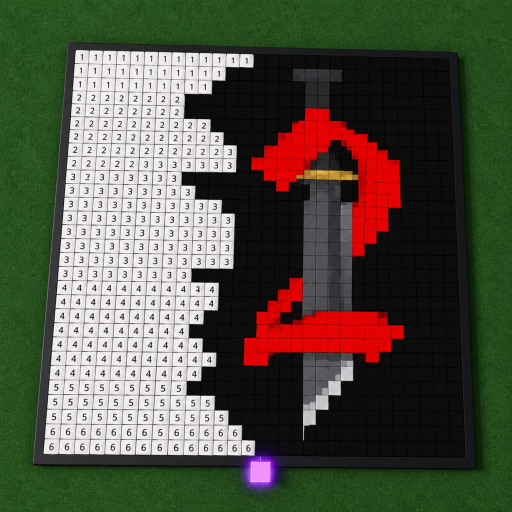
The chosen icon appears as your reference above a grid of numbered blocks. The fan wiki paintagame.com puts it directly: the visible grid is the work itself, a shared numbered canvas in the paint-by-numbers tradition.
Fill the numbered cells to recreate the icon. There is no timer and no score: the loop is deliberately calm, and the official description frames the whole game as a chill coloring experience.
Progress saves automatically, so an unfinished canvas survives the session. The description promises you can leave and come back later — the reason this site's planner counts cells per session rather than per sitting.
Interpretation guidance: a percentage is a planning tool, not a grade. Paint a Game has no completion reward on record — no badges exist (empty badges endpoint, 2026-10-03) and no currency exists to buy anything with — so 40% versus 42% matters only for your own session target. If a number stops motivating you, plan regions instead of cells and leave the calculator out of it.
It measures your own painting progress as a percentage: completed cells divided by total cells. Paint a Game has no currency, score, or level system (the game-pass and badge endpoints are empty at the October 3, 2026 check), so cells on your canvas are the one quantity you can actually count — this planner makes that count useful.
Count the cells your canvas shows once the icon is loaded — the game draws a numbered grid of blocks, and the grid is different per subject. The planner deliberately asks you instead of hard-coding a size, because the creator has never stated a fixed canvas dimension and different icons fill different areas.
Count one finished row, then multiply by the rows that share its pattern, or count in color blocks. If your canvas shows region boundaries, a region at a time is fastest. The number only needs to be close: at 400 cells the difference between 148 and 152 completed is one percentage point.
Enter a percentage goal and the planner converts it into cells: a 75% target on a 400-cell canvas is 300 cells, so 150 done means 150 to go. That turns a vague "finish the painting someday" into a number you can reach in one or two sittings — matching how the game itself is designed, since progress autosaves between visits.
No. It runs arithmetic in your browser on the numbers you type. It receives no game telemetry, no account data, and it cannot write anything to your painting. The official autosave keeps your progress in the game; this page only does the division for you.
Multi-session plans built on checkpoints.
Agree a group goal before the session.
What autosave does and does not promise.
Load the right reference first.
Plots, canvas, and multiplayer, sourced.
Every record behind this planner, dated.