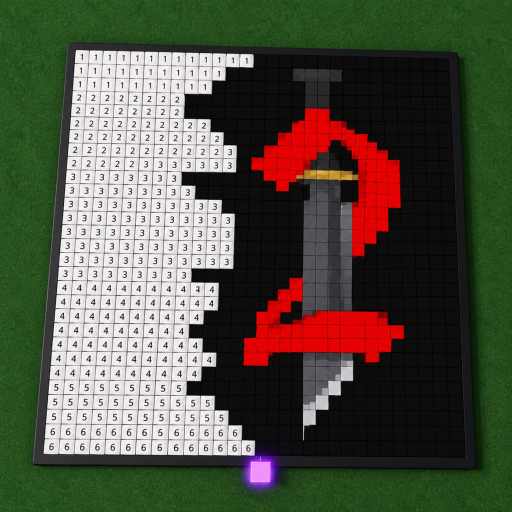
PaintAGame
Painting tips

Paint a Game Controls & Painting Tips

A practical grid workflow that does not invent device buttons, palette rules, scores, or rewards.

Checked July 21, 2026Universe 10440766252
Quick answer

Start here

Follow the interaction labels currently shown in Roblox, then paint from a recognizable edge or color block in small sections. The source material confirms block-by-block painting, but it does not publish fixed PC, mobile, or console controls.

Step-by-step

Follow the painting flow

The steps stay within the official description and the selected game identity. Button names can change, so use the matching in-game prompt rather than expecting a fixed label.

  1. 1

    Read the current prompt

    Stand at your claimed plot and use the interaction displayed by Roblox. Treat any key shown in an older video as device- and version-specific unless the current client agrees.

  2. 2

    Choose one visual landmark

    Begin at an obvious border, corner, or large color area. A stable landmark gives every nearby cell a reference point.

  3. 3

    Paint in compact sections

    Complete a short row or small block, then compare it with the loaded icon. Moving in a predictable direction makes an accidental offset easier to notice.

  4. 4

    Recheck before expanding

    Pause at color transitions and edges. Correcting one local section is simpler than rebuilding a large region after a shifted cell.

  5. 5

    Leave a personal checkpoint

    Note the region you finished or save your own cell counts in the progress planner. Do not treat that number as live telemetry from Roblox.

If you're stuck

Common mistakes and safer checks

Copying an unverified control list

Roblox input prompts differ by device and can change with updates. The live prompt is the source for the current button.

Using automation or exploit scripts

Third-party scripts may violate platform rules or expose accounts. This site does not provide or endorse auto-paint tools.

Assuming every color has a fixed ID

No stable official palette dataset was selected. Match the visible reference rather than inventing palette codes.

Known limits

What this guide does not claim

  • No device-specific key mapping is guaranteed.
  • No official palette IDs, match tolerance, or accuracy score is claimed.
  • No automation, macros, or exploit instructions are provided.
  • No time estimate or reward prediction is derived from cell counts.

PaintAGame is an independent fan guide, not Roblox or dilly dally games. Use the official experience for current UI and support.

FAQ

Questions players ask

What are the Paint a Game controls?

Use the interaction prompts shown by the current Roblox client. We have not verified a stable keyboard, touch, or controller mapping.

How can I avoid painting the wrong cell?

Work from a clear landmark, compare nearby cells often, and finish one small region before moving across the canvas.

Is there an auto-paint option?

No supported auto-paint feature was selected. Exploit scripts and automation are outside this guide and can put accounts or devices at risk.

Does the game score color accuracy?

No verified scoring formula or palette-matching model was collected, so this guide does not claim one.

Next steps

Keep painting with the right reference